
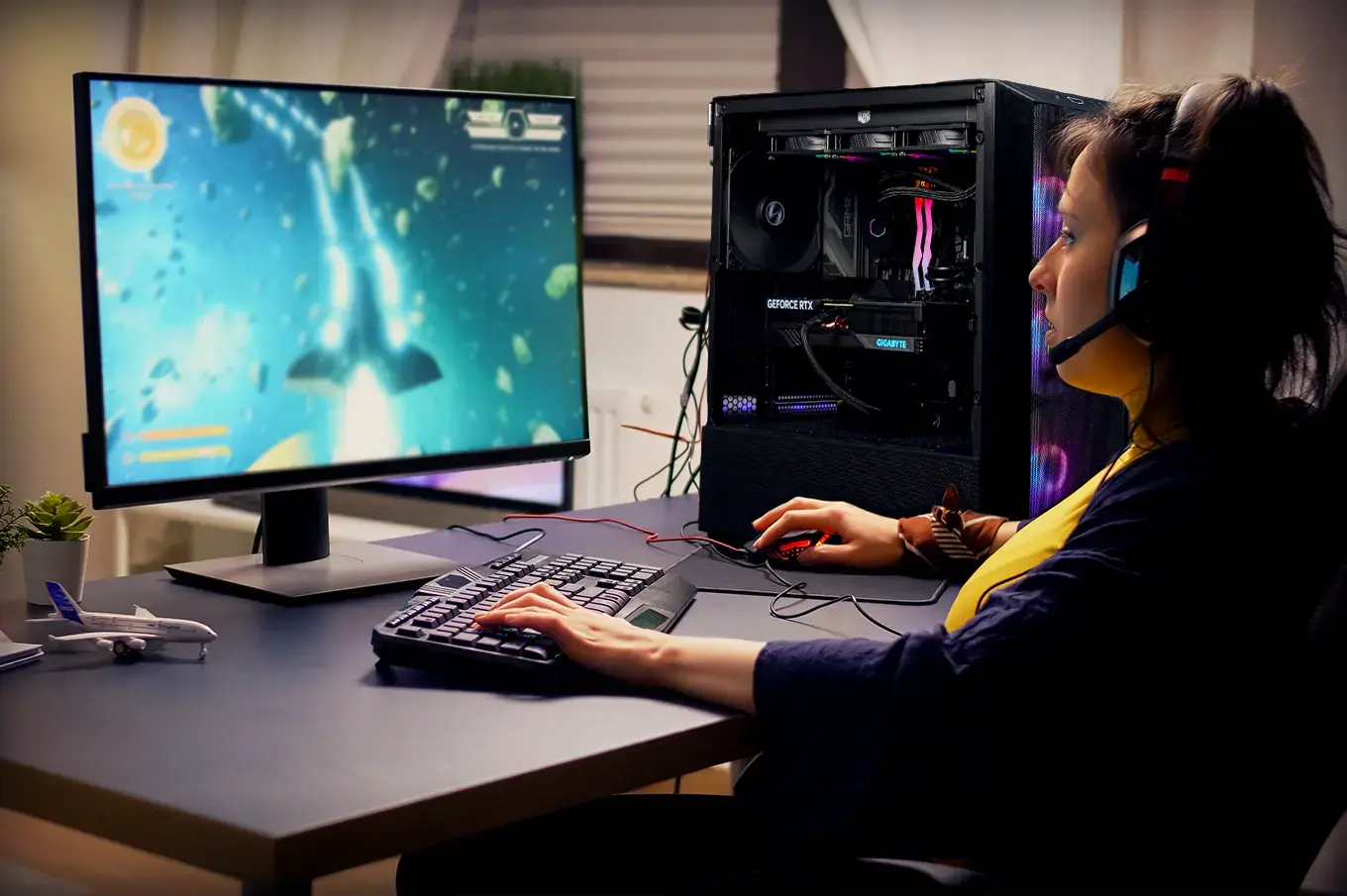
PC gaming can be frustrating when games lag, freeze, or struggle to maintain a stable frame rate. Even a computer with good hardware may experience performance problems because of outdated drivers, unnecessary background applications, high temperatures, or incorrect graphics settings. Fortunately, you do not always need to purchase expensive hardware to improve your gaming experience.
With a few practical adjustments, you can make Windows run more efficiently and help your games perform better. In this guide, we will explore 10 useful ways to optimize a Windows PC, improve FPS, and enjoy smoother gameplay.
1. Close Unnecessary Background Applications
Background applications can consume valuable CPU, RAM, and disk resources. When several programs run while you are gaming, your computer has fewer resources available for the game.
Before launching a demanding title, close applications you do not need, such as unused browsers, video editors, and unnecessary launchers.
You can check resource usage through Windows Task Manager by pressing Ctrl + Shift + Esc. Open the Processes tab to identify programs using significant system resources.
Closing unnecessary applications can help reduce background activity and make more resources available for gaming. However, avoid ending unfamiliar Windows processes because some are essential for system operation.
2. Update Your Graphics Drivers
Graphics drivers play an important role in gaming performance. They allow Windows and games to communicate properly with your graphics card.
Outdated drivers can sometimes cause crashes, visual glitches, compatibility problems, and reduced performance. NVIDIA, AMD, and Intel regularly release driver updates to improve compatibility with new games and fix known issues.
Visit your graphics card manufacturer’s official website or use its dedicated software to check for updates. Installing the correct driver can help your computer run supported games more reliably.
You should also keep other important system drivers updated, but always download them from trusted sources.
3. Enable Windows Game Mode
Windows includes a built-in Game Mode designed to improve the gaming environment. It helps prioritize gaming activities and manage certain background operations.
To enable this feature:
- Open Windows Settings.
- Select Gaming.
- Click Game Mode.
- Turn the feature on.
Game Mode is easy to activate and does not require additional software. Although its impact depends on your computer and the game, it is a useful setting to check when optimizing a Windows PC.
4. Adjust In-Game Graphics Settings
High graphics settings can put additional pressure on your processor and graphics card. If your games frequently experience stuttering or low frame rates, reducing demanding visual options may help.
Consider adjusting these settings:
- Shadow Quality: Reduce shadows to Medium or Low.
- Anti-Aliasing: Lower the setting if your GPU struggles.
- Motion Blur: Disable it if you prefer clearer movement.
- Resolution: Try a lower resolution if FPS remains unstable.
- Texture Quality: Choose settings that match your graphics card’s available memory.
You do not need to reduce every setting. Test different combinations to find a balance between attractive visuals and smooth performance.
5. Use a Game Booster for Easier Optimization
Manually adjusting multiple Windows settings can take time, especially for people who are not familiar with computer optimization.
A dedicated Game Booster can make gaming preparation more convenient by providing tools designed to manage system resources and improve the gaming environment.
Smart Game Booster by iTop is one option for Windows users who want a dedicated gaming optimization solution. It is designed to help users manage gaming-related performance settings without requiring them to make every adjustment manually.
Before applying any optimization, review the available settings and make sure they suit your computer. Remember that software cannot replace insufficient hardware, but it may help reduce avoidable performance overhead.
6. Reduce Unnecessary Startup Programs
Some applications automatically launch when Windows starts. Although this can be convenient, too many startup programs may increase boot time and consume resources in the background.
To manage startup applications:
- Open Task Manager.
- Select Startup apps.
- Review the listed programs.
- Disable applications you do not need immediately after startup.
This simple adjustment can make Windows feel more responsive and reduce unnecessary background activity.
Avoid disabling security software or important system applications. Focus on programs that you recognize and rarely use.
7. Monitor FPS During Gameplay
FPS, or frames per second, measures how many individual frames your computer displays every second. Higher frame rates generally provide smoother movement and more responsive gameplay.
For example, a game running at 60 FPS usually looks smoother than the same game running at 30 FPS. Competitive gamers may prefer even higher frame rates, depending on their hardware and monitor.
If you experience inconsistent performance, an FPS Booster is another option worth exploring. It provides a gaming-focused approach to performance optimization and can help users explore ways to improve their gaming experience.
Keep in mind that actual FPS improvements depend on your hardware, game settings, and system condition. No software can guarantee the same results on every computer.
8. Keep Your Computer Cool
Overheating can negatively affect gaming performance. When a CPU or GPU becomes too hot, it may reduce its operating speed to protect itself. This is known as thermal throttling.
To maintain proper cooling, clean dust from your computer’s fans and air vents regularly. Keep your desktop in a ventilated area and avoid blocking laptop cooling vents.
You can also monitor CPU and GPU temperatures using trusted hardware monitoring software.
If your computer becomes unusually hot during gaming, check its cooling system rather than relying only on optimization software.
9. Install Games on an SSD
Storage speed can influence game loading times and how quickly certain game assets become available.
Traditional hard drives are generally slower than solid-state drives. Installing games on an SSD can reduce loading times and improve overall system responsiveness.
However, an SSD does not automatically increase FPS in every game. Its main benefit is faster data access, which can make loading screens shorter and reduce some storage-related delays.
If your computer supports an SSD upgrade, it may be a worthwhile improvement for everyday use and gaming.
10. Check Your PC’s Available Resources
Understanding your hardware can help you identify the real cause of gaming problems.
Check CPU usage, GPU usage, RAM consumption, and temperatures while playing. Windows Task Manager provides basic information, while dedicated monitoring utilities can offer additional details.
For example, consistently high RAM usage may indicate that you need to close applications or consider a memory upgrade. High GPU usage may simply mean that your graphics card is working hard to render the game.
Understanding these details helps you make better decisions instead of changing random settings.
Final Thoughts
Improving PC gaming performance does not always require expensive hardware upgrades. Closing unnecessary applications, updating drivers, adjusting graphics settings, enabling Windows Game Mode, and maintaining proper cooling can all help create a better gaming experience.
For users who prefer a more convenient approach, Smart Game Booster by iTop offers dedicated gaming optimization features worth exploring. Combining sensible system maintenance with suitable optimization tools can help you get more out of your existing computer and enjoy smoother gameplay.