Removing programs completely is one of the easiest ways I’ve found to free up storage space, improve PC speed, and avoid registry clutter. After trying multiple uninstall tools, I found that IObit Uninstaller 15 offers one of the most reliable ways to remove software without leaving traces behind.
Besides, what impressed me most is its Install Monitor feature, which records every system change during installation. This makes it possible to remove programs later with almost zero leftovers. If you regularly install and test apps like I do, this feature is extremely useful.
My First impression of IObit Uninstaller 15
As some professional media said, IObit Uninstaller 15 is a professional Windows uninstaller designed to completely remove unwanted software, browser extensions, bundled apps, and stubborn programs.
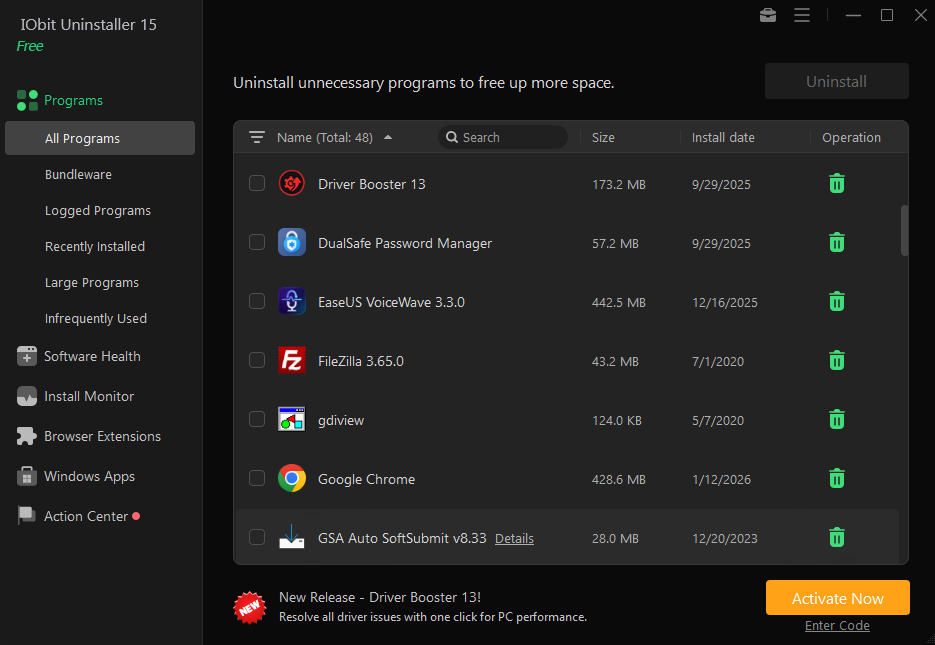
Unlike the default Windows uninstaller, it tracks installation activity, including files, folders, and registry changes. Later, when uninstalling a program, it can remove every associated component automatically. I personally noticed fewer leftover files and better storage management after switching to it. It also helped me remove annoying bundled software that Windows couldn’t fully uninstall.
Features I Personally Found Most Useful
After using IObit Uninstaller 15, these three features made the biggest difference for me.
1. Complete Software Removal and Cleanup
What impressed me most was how thoroughly the software removes programs. It not only uninstalls applications but also automatically scans for leftover files, hidden folders, unused registry entries, and stubborn remnants that Windows often misses. I was even able to remove programs that normally refused to uninstall through standard Windows settings. And the batch uninstall feature also saved me a lot of time when cleaning multiple unused apps at once.
2. Smart Monitoring and System Optimization
The Install Monitor quickly became one of my favorite tools because it tracks all installation changes in real time. Later, this allows for much cleaner and more accurate uninstalls without leaving junk behind.
I also found the Software Health feature useful for identifying outdated programs and clearing failed Windows update files that were wasting disk space and affecting performance.
3. Privacy and Security Protection
Beyond uninstalling software, I liked the extra privacy and security tools included. The Software Permission manager helped me review which apps had access to sensitive features like the startup items, firewall rules, and taskbar icons, making it easier to disable unnecessary permissions. The File Shredder was another useful addition because it permanently deleted sensitive files, preventing their recovery.
How I Use Install Monitor for 100% Clean Uninstalls
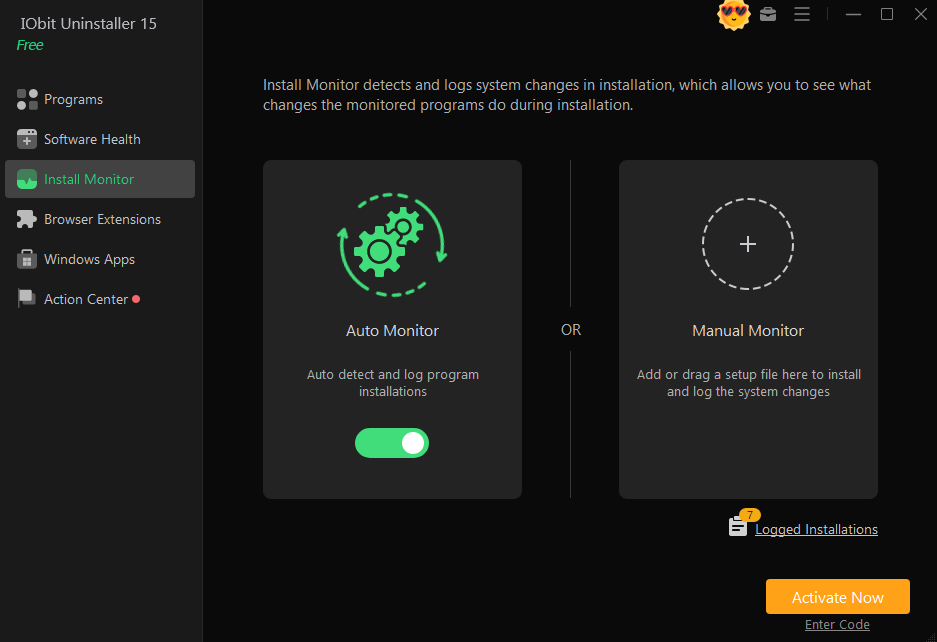
The Install Monitor feature is what really separates IObit Uninstaller 15 from standard uninstallers. It records all system changes during installation, including created files, services, and registry modifications. Here’s exactly how I use it.
Step 1. Enable Auto Monitor
First, I make sure automatic monitoring is turned on.
- Download and launch this uninstaller for Windows
- Go to the Install Monitor section
- Enable “Auto Monitor”
- Enable installation notifications
Once enabled, the software automatically logs installation changes whenever I install a new program.
Step 2. Use Manual Monitoring for Important Installs
For larger or more complex software, I sometimes manually monitor the installation.
Here’s what I do:
- Open the Install Monitor tab
- Drag the setup file (.exe or .msi) into the window
- Start the installation through IObit Uninstaller
This ensures every change gets recorded accurately.
Step 3. Perform a Complete Uninstall Later
When I want to remove the program later, the uninstall process becomes much cleaner.
- Open IObit Uninstaller 15
- Find the app under Logged Programs
- Select the program
- Click the Uninstall button
The software then uses the installation log to remove all related files, folders, registry entries, and leftover data automatically. In my experience, this works far better than the standard Windows uninstaller.
Why I Prefer a Professional Uninstaller
After years of relying on Windows’ built-in uninstall tool, I realized it often leaves behind hidden files, unused registry entries, cache data, and leftover folders. Switching to the professional IObit Uninstaller made a noticeable difference because it provided a much deeper cleaning process. I was able to recover storage space, remove stubborn applications that normally refused to uninstall, and manage multiple unwanted programs much faster with batch uninstall features.
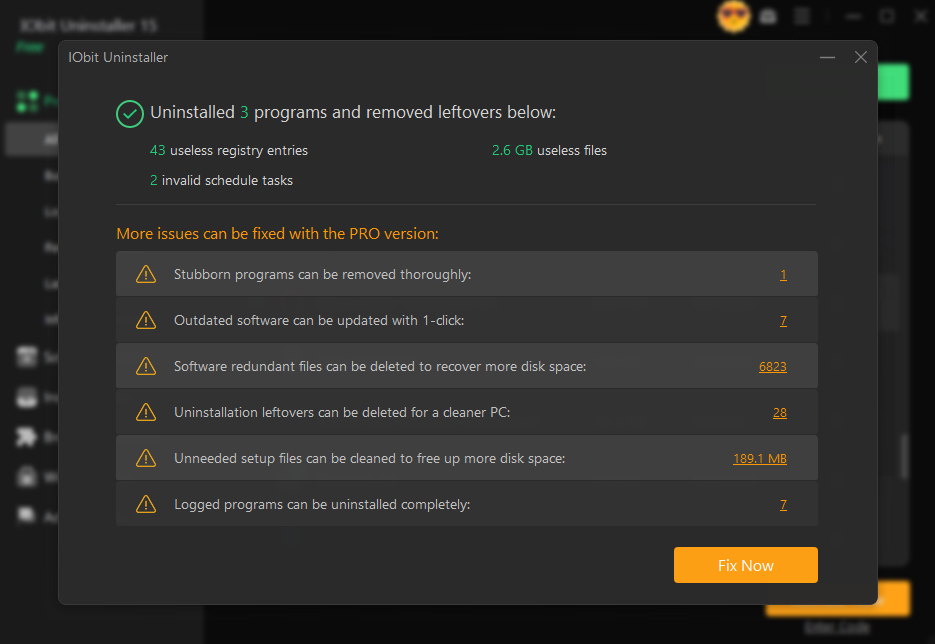
Another reason I prefer using this uninstaller for Windows is the added performance and security benefits. Once old software and leftover data were removed completely, my PC felt faster and more responsive overall. It also helped reduce potential security risks by fully removing outdated or unused applications. I especially liked that the software creates restore points before making major changes, which adds an extra layer of protection and makes the cleanup process feel much safer.
Final Thoughts
From my personal experience, keeping a PC clean requires more than simply uninstalling apps through Windows. Leftover files, registry clutter, and hidden bundled software can build up over time and affect performance.
Using IObit Uninstaller 15 helped me completely remove unwanted software, recover storage space, and maintain a smoother system overall. The Install Monitor feature especially made a huge difference because it allowed me to uninstall programs later without leaving traces behind.
If you frequently install and remove software, this tool can make PC maintenance much easier while keeping your system optimized and organized.